If you have to periodically cleanse and validate market data within a specific time window, and keep an audit trail of your validation workflow, you can use Xplain’s anomaly detection module for market data (standard market data or TRS market data).
You can also use our valuation data anomaly detection module or our trade onboarding module, which are based on a similar methodology.
We will use the term MD XM or market data XM when referring to market data cleansing.
On this page, we will set out:
- how to set up the example market data environment (to replicate the worked example)
- how to start a market data XM workflow by creating a dashboard
- the key steps of the workflow and how to monitor its progress via the dashboard
You can view and export the results of the data cleansing process “as-you-go”, including raw, preliminary cleansed and overlay cleansed data (as described in the key steps of the workflow) and corresponding market data sources.
The Prerequisites
In terms of generic prerequisites, you can refer to or use the predefined break tests and task allocation settings, as described in the sandbox environment.
Completed Dashboard Example
You can view a completed dashboard related to the ‘3PM LONDON’ market data group (linked to the ‘BLUESTONE’ company) or to the ‘COB LONDON’ market data group (linked to the ‘LONDON_FICC’ company). Alternatively, you can replicate the completed ‘COB LONDON’ dashboard by starting your own MD XM workflow.
This page will guide you through the process using an example: running the anomaly detection process as at 30 November 2022 on ‘NEW MARKET DATA GROUP’ and ‘NEWCOMP’, after uploading “corrupted” EUR 10y swap rate (vs. EURIBOR 6M) data.
The .CSV import files with the relevant data can be downloaded here.
Setting up the Market Data Environment for the Example MD XM
To replicate the worked example below, you will first need to import market data that will trigger breaks during the data cleansing workflow. The .CSV import file with corrupted market data can be downloaded here. 
Once imported, you can start a market data XM workflow and monitor the key steps of its progress via a dashboard.
In our worked example, we will trigger a Quantum break, one of our example preliminary break tests, by assigning an incorrect value of 10,000,000 to the EUR 10y swap rate (vs. EURIBOR 6M) provided by ICAP (our example primary provider). Our second example break test (the EUR IRS Source to Source overlay break test) will also breach the 5% threshold applied to the relative difference between the ICAP preliminary cleansed data and the TULLETT data (secondary provider).
Under
Data/Market Data/NEW MARKET DATA GROUP
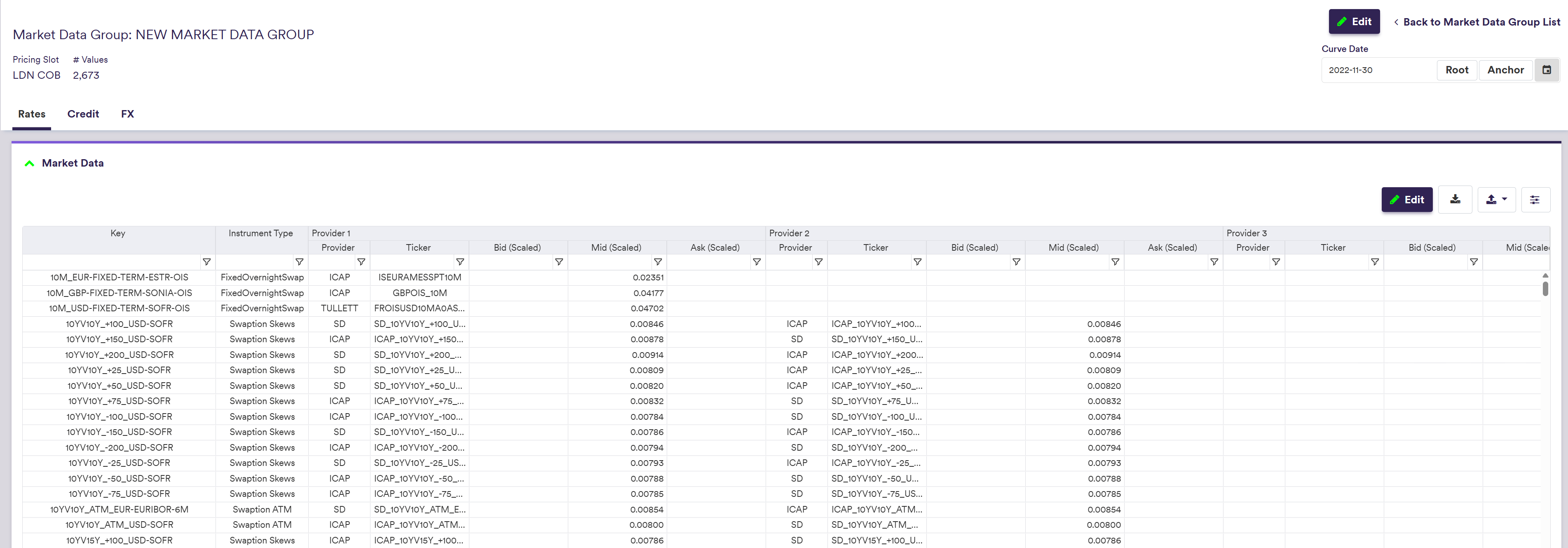
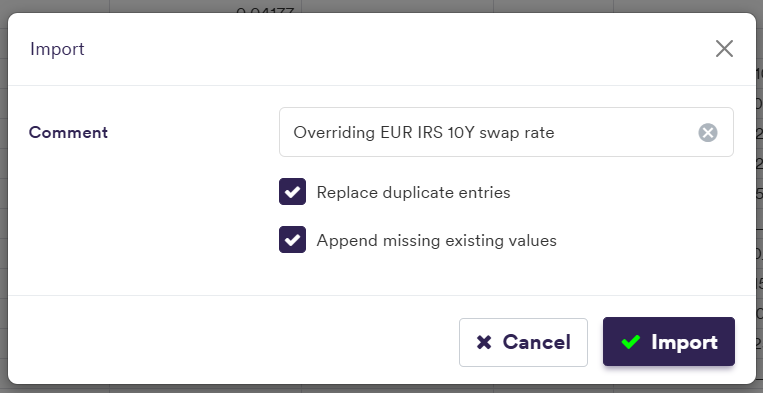
You will need to select the option to Replace duplicate entries to override the existing EUR 10y swap rate (vs. EURIBOR 6M) with the corrupted market data and to Append missing existing values that are not in the import file (see the versioning page for more detail).
Applying MDK filter '10Y_EUR-FIXED-1Y-EURIBOR-6M'

To restore the initial market data environment, you will need to import overriding data without anomaly. The .CSV import file with initial market data can be downloaded here.
Again, you will need to select the option to Replace duplicate entries to override the existing corrupted market data and to Append missing existing values that are not in the import file.
Starting a Market Data XM Workflow
Once you have met the generic prerequisites and have a default pricing environment ready (see above for our worked example), you can start a market data XM workflow by creating a dashboard.
You can then monitor the key steps of its progress at the dashboard level.
You can view and export the results of the data cleansing process “as-you-go”, including raw, preliminary cleansed and overlay cleansed data (as described in the key steps of the workflow) and corresponding market data sources.
| Field Name | Description | Permissible Values |
|---|---|---|
| (TRS) Market Data Group | The data group that contains the raw (TRS) market data | Any existing (TRS) market data group |
| Curve Date | The curve date (set by default to the system's anchor date) | YYYY-MM-DD (ISO 8601) |
| Relevant market data only | Whether to clean all market data or only data required to value the portfolios associated to the market data group (via the parent Company / Entity's valuation settings) | Boolean |
Data Cleansing/Market Data/Market Data XM Dashboard

You can now start the MD XM workflow by clicking on
After clicking on
Data Cleansing/Market Data

Under
- from ‘Not Started’, after clicking on
Create - to ‘In Progress’, after clicking on
Run - to ‘Completed’, once all break test phases have been completed (i.e. any actual breaks identified during break testing were successfully resolved and approved)
%%{init:{
  'flowchart':{
    'nodeSpacing': 50,
    'rankSpacing': 50,
    'diagramPadding': 5
  }
}}%%
flowchart TB

A["Not Started"]
B["In Progress"]
C["Completed"]

subgraph title[Dashboard Status]
A --> B
B --> C
end

classDef subgraphStyle font-weight:bold,fill:none,stroke:#805CDD,stroke-width:1px;
classDef xplStyle fill:#805CDD,stroke:#333,stroke-width:1px,color:#fff;

class title subgraphStyle;
class A,B,C xplStyle;
You can monitor the key steps of the MD XM workflow progress in more detail at the dashboard level, as described in the section below.
Key Steps of the Market Data XM Workflow
Under
In this section, we will discuss:
- how break tests are applied on market data
- the break test phases that may require your resolution and approval input (if there are any actual breaks)
The three main phases of the MD XM workflow which can be viewed in the dashboard are:
- The ‘Market Data Upload’ phase
- The ‘Preliminary Breaks’ phase (*)
- The ‘Overlay Breaks’ phase (**)
(*) Preliminary break tests aim at identifying potential outliers on a standalone basis.
(**) Overlay break tests aim at identifying potential outliers on a comparison basis (e.g. day-on-day or source-to-source), and are applied on Preliminary Cleansed Data on a curve configuration basis.
After loading the relevant market data, Xplain will perform break testing for the Preliminary and Overlay break test phases, as described in the Market Data XM Break Testing section below.
Each break test phase will be split into streams, as described in the Break Test Phase Streams section below. The resolution and approval of the breaks can then be done in parallel on a stream basis.
For more detail on Preliminary and Overlay break tests for market data, please refer to the break test definitions page.
Data Cleansing/Market Data/Market Data Dashboard

The overall status of each break test phase are as follows:
%%{init:{
  'flowchart':{
    'nodeSpacing': 50,
    'rankSpacing': 50,
    'diagramPadding': 5
  }
}}%%
flowchart TB

A["Not Started"]
B["In Progress"]
C["Completed"]

subgraph title[Break Test Phase Status]
A --> B
B --> C
end

classDef subgraphStyle font-weight:bold,fill:none,stroke:#805CDD,stroke-width:1px;
classDef xplStyle fill:#805CDD,stroke:#333,stroke-width:1px,color:#fff;

class title subgraphStyle;
class A,B,C xplStyle;
The status of a break test phase will be a function of the status of its streams, which will evolve as described in the Break Test Phase Streams section below. It will be set to ‘Not Started’ if all its streams are either ‘Processing’ or ‘Pending Resolution’, to ‘In Progress’ if at least one of its streams is beyond ‘Pending Resolution’, and to ‘Completed’ if all its streams are ‘Approved’.
Data Cleansing/Market Data/Market Data Dashboard

On an instrument basis, once all breaks have been resolved and approved (i.e. status is ‘Verified’), you can view the corresponding MD XM results at the dashboard level.
If you have imported corrupted market data to ‘NEW MARKET DATA GROUP’ to trigger a break during the MD XM workflow, you can now either restore the original market data (as described above) or perform curve calibration and portfolio valuation using the overlay cleansed data.
1. Market Data XM Break Testing
For each curve node and volatility point, Xplain automatically generates a unique identifier, referred to as a market data key (MDK), which is derived from the instrument’s characteristics (e.g. tenor) and the underlying index convention. MDKs are used to map a curve node or a volatility point to the relevant market data.
If, when creating the dashboard, you have opted to perform market data cleansing only on data that are required to value the portfolios associated to the market data group (via the parent Company / Entity’s valuation settings), only those market data will be considered for break test calculations. Otherwise, all market data associated to a given curve configuration will be cleansed.
Preliminary break tests are performed for each [MDK + market data provider] combination. For example, when identifying missing data, if a curve node type is linked to two providers, the ‘NULL’ break test (which you cannot disabled) will be applied twice, once for each provider. This will result in up to two breaks to resolve.
The output resulting from a preliminary break resolution will be deemed to be the Preliminary Cleansed Data.
Overlay break tests are applied on an MDK basis, based on the Preliminary Cleansed Data.
The effective number of successfully applied tests will be reported in the dashboard, but tests that cannot be performed if an underlying data is missing (e.g. a ‘NULL’ value or no previous data available for a day-on-day test) will not trigger a break.
You will need to resolve any actual breaks within a given stream, as described in the Break Test Phase Streams section below.
For day-on-day tests, the ‘previous day’ will be defined as the latest date prior to the current date on which there is any market data available for the market data group in scope. If such data is missing, day-on-day tests will not be performed.
2. Break Test Phase Streams
Following break testing (preliminary and overlay), you will need to resolve any actual breaks within a given stream. Streams are defined according to the task granularity settings, with the ‘Overlay Breaks’ phase split by curve configuration first.
On the Market Data Break Test - Resolver page, we will start guiding you through the break test resolution process for market data.
More specifically, you can refer directly to the following pages for more detail on:
For each stream with breaks, a resolution task will be generated, that can be checked out then under
Once checked out, the status of the resolution task will go from ‘Pending Resolution’ to ‘In Resolution’. Following the first submission of a proposed resolution (as described in the Market Data Break Clearing - Resolver page), an approval task will be generated, that can also be checked out then. Likewise, once checked out, the status of the approval task will go from ‘Pending Approval’ to ‘In Approval’.
If the resolution is rejected (as described in the Market Data Break Clearing - Approver page), if no longer live, the resolution task will be visible again with the status ‘In Resolution’, and will need to be re-opened by the original resolver.
Likewise, if no longer live, the approval task will be visible again with the status ‘In Approval’, and will need to be re-opened by the original approver.
While there is no live approval task, the initial status of the stream will be ‘Pending Resolution’, and it will evolve as described in the diagram below. As we allow for partial break clearing, breaks within a stream may be at a different stage of the clearing process. For instance, some items may already be waiting for approval where some others may still be waiting for resolution, in which case the status of the stream will be set to ‘Hybrid’ (i.e. there is both a live resolution task and a live approval task).
%%{init:{
  'flowchart':{
    'nodeSpacing': 50,
    'rankSpacing': 50,
    'diagramPadding': 5
  }
}}%%
flowchart TB

A["Pending Resolution"]
B["In Resolution"]
C["Hybrid"]
D["Pending Approval"]
E["In Approval"]
F["Completed"]

subgraph title["Stream Status"]
A --> B
B --> D
D --> E
E --> F
B <--> C
C <--> E
E <--> B
end

classDef subgraphStyle font-weight:bold,fill:none,stroke:#805CDD,stroke-width:1px;
classDef xplStyle fill:#805CDD,stroke:#333,stroke-width:1px,color:#fff;

class title subgraphStyle;
class A,B,C,D,E,F xplStyle;
When expanded, the information related to a break test phase will set out the status of each stream.
Data Cleansing/Market Data/Market Data Dashboard
